> ## Documentation Index
> Fetch the complete documentation index at: https://docs.onlyform.com/llms.txt
> Use this file to discover all available pages before exploring further.
# Widgets overview
> Share an Onlyform form with a link, iframe, or interactive embed.js widget.
Onlyform provides two ways to place a published form on another website:
| Method | Best for | JavaScript required |
| ---------- | ----------------------------------------------------------- | ------------------- |
| `iframe` | Forms displayed directly inside page content | No |
| `embed.js` | Full-page, popup, slider, popover, and side-tab experiences | Yes |
## Get the embed code
Widgets load the published form. Publish pending changes before testing the final embed.
Open the form in the Onlyform dashboard and select **Share**.
Choose Standard, Full page, Popup, Slider, Popover, or Side tab. Adjust the available design controls and check the desktop and mobile previews.
Select **Copy code**, paste the snippet into the target page, and replace placeholder hidden-field values before publishing.
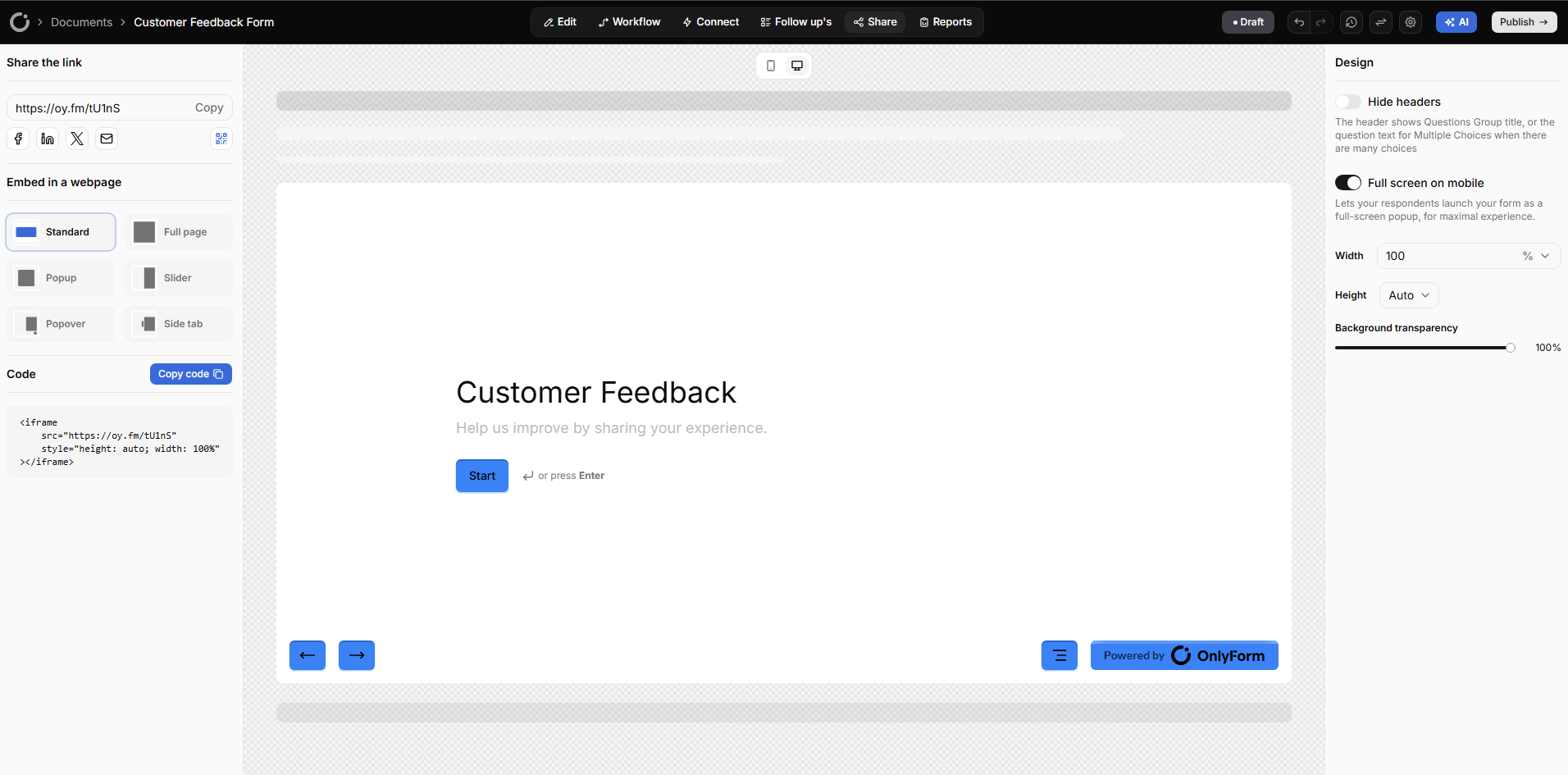 ## Choose an embed type
Keep the form within the normal page layout without loading widget JavaScript.
Let the form occupy the complete browser viewport.
Open a centered modal from your own button.
Open the form in a panel from the left or right.
Add a compact floating contact or feedback launcher.
Keep a persistent vertical launcher at the edge of the page.
## Public form URLs
Examples use `FORM_ID` for the form's public ID. The complete public URL can use any hostname configured for the form:
```text theme={null}
https://oy.fm/FORM_ID
https://YOUR_SUBDOMAIN.oy.fm/FORM_ID
https://forms.example.com/FORM_ID
```
Copy the URL shown on the Share page instead of constructing it yourself. See [Custom domains](/widgets/custom-domains) for the differences between iframe and JavaScript widgets.
Widgets do not use an API key. They display a public, published form and are separate from authenticated Public API requests.
## Choose an embed type
Keep the form within the normal page layout without loading widget JavaScript.
Let the form occupy the complete browser viewport.
Open a centered modal from your own button.
Open the form in a panel from the left or right.
Add a compact floating contact or feedback launcher.
Keep a persistent vertical launcher at the edge of the page.
## Public form URLs
Examples use `FORM_ID` for the form's public ID. The complete public URL can use any hostname configured for the form:
```text theme={null}
https://oy.fm/FORM_ID
https://YOUR_SUBDOMAIN.oy.fm/FORM_ID
https://forms.example.com/FORM_ID
```
Copy the URL shown on the Share page instead of constructing it yourself. See [Custom domains](/widgets/custom-domains) for the differences between iframe and JavaScript widgets.
Widgets do not use an API key. They display a public, published form and are separate from authenticated Public API requests.