

Get the embed code
1
Publish the form
Widgets load the published form. Publish pending changes before testing the final embed.
2
Open Share
Open the form in the Onlyform dashboard and select Share.
3
Select an embed type
Choose Standard, Full page, Popup, Slider, Popover, or Side tab. Adjust the available design controls and check the desktop and mobile previews.
4
Copy and install the code
Select Copy code, paste the snippet into the target page, and replace placeholder hidden-field values before publishing.
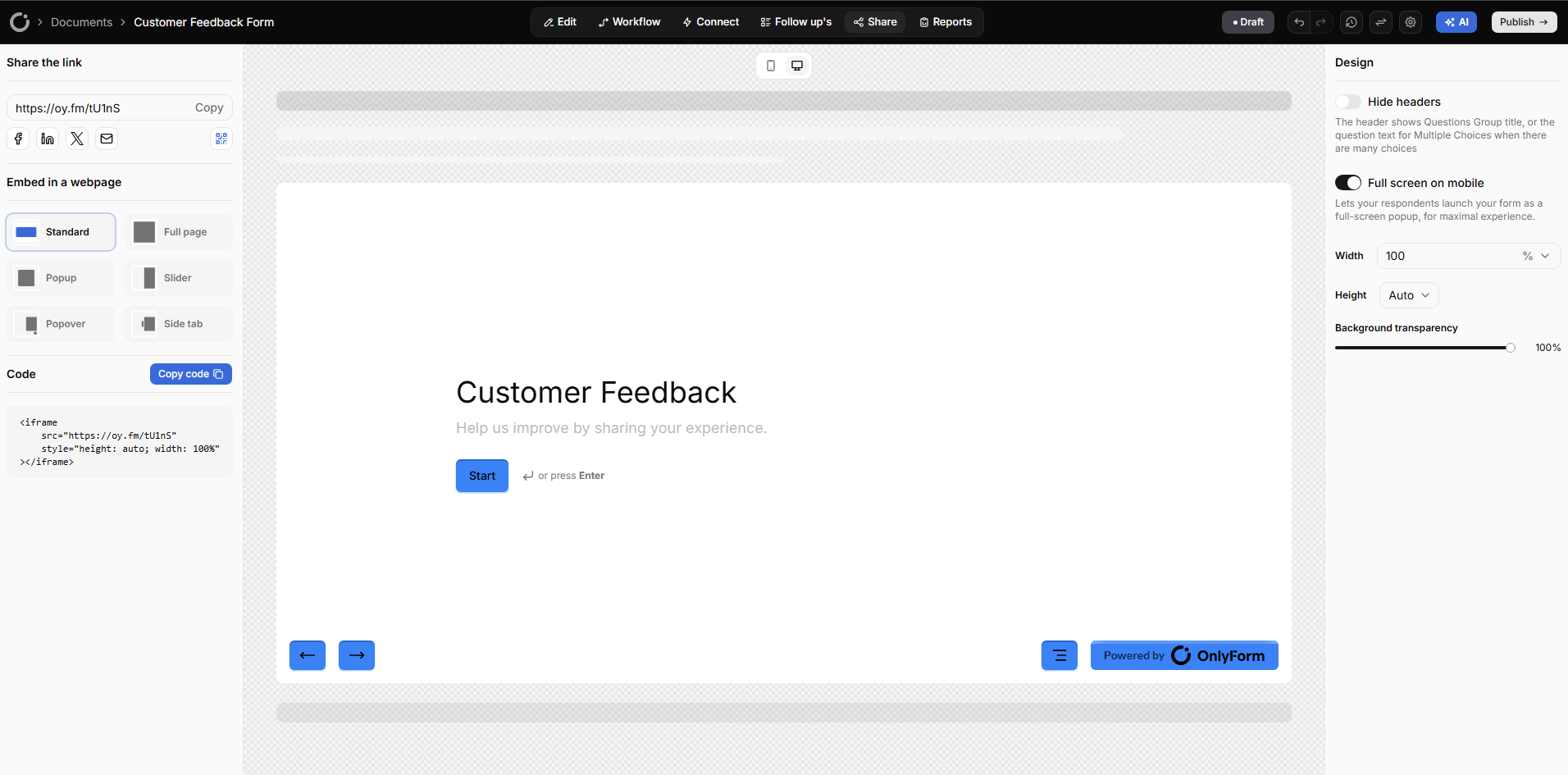
The Share page contains the public link, embed type selector, preview, design controls, and generated code.
Choose an embed type
Standard iframe
Keep the form within the normal page layout without loading widget JavaScript.
Full page
Let the form occupy the complete browser viewport.
Popup
Open a centered modal from your own button.
Slider
Open the form in a panel from the left or right.
Popover
Add a compact floating contact or feedback launcher.
Side tab
Keep a persistent vertical launcher at the edge of the page.
Public form URLs
Examples useFORM_ID for the form’s public ID. The complete public URL can use any hostname configured for the form:
Widgets do not use an API key. They display a public, published form and are separate from authenticated Public API requests.